Friday, January 6, 2023

Technology Advice for Parents with Toddlers


I was watching my nephew use an iPad the other day. He is 3, but I marveled at how he navigated the iPad. I watched him as he watched a video and then gracefully moved from the YouTube app to the YouTube Kids app. I guess he got bored with that first video.

I watched for a few minutes and noticed he was watching videos for a short while, never really reaching the mid-point of any of them, and then moving onto the next recommended video. Watching him I wondered about my own students and how their relationship with technology could have been different. 

The advice I would like to give to my nephew's parents and other parents with toddlers is the following:

• always know what you're child is doing on the device,
• be present - use should always happen in front of you,
• set time limits - the AACAP recommends only an hour a day for children 3-5 years old,
• talk about what they do and why - try to understand them,
• encourage creation over consumption.

This list is not comprehensive, and the points need to be expanded on, but it is a start for now.


Sunday, December 18, 2022

Using Captions in Google Chrome

One question I heard the other day was about captions for a video. My idea was to upload it to YouTube and get the captions from there. But not all videos have them.

Another option is to use Live Captions in the Chrome browser [Chrome]. The advantage of using them in Chrome is that they can be used for any audio that is run through the browser. 

To start using them open Chrome
  1. Go to Settings
  2. Accessibility
  3. Turn on Live Caption at the top of the list.


After they are enabled, the captions appear at the bottom of the screen in the middle. This can be a little busy and hard to read.

Fortunately, it is possible to move the textbox by simply dragging it to another position on the screen.


There are some tools here: a pin, something that looks like it makes the text box bigger, and an "x". The pin keeps the box from moving and the "x" closes the box, but for some reason (probably an extension) the middle button, that one that should be to make the box bigger, didn't work for me.


Chrome translations on an audio file in Google Drive is also very solid.

Live captions even work with audio files played through Google Drive


For more information, see the Google Support page: https://support.google.com/chrome/answer/10538231?hl=en


Wednesday, December 14, 2022

Change the Question

This might become my new header.

ChatGPT is causing a lot of panic -- in me. On the HS side of the school, I have seen two instances of students using it to write out their work.

I am not panicking because ChatGPT can write for you -- I am panicking because students and teachers are not ready for it.

When I saw that a student was using it, I immediately messaged the IT team to let them know that it was happening. I got a reply that there will be a workshop in January for the upper school teachers. 

That's good, but still, I wish I would be there. My talk might go something like this:
  • Ask the audience for a prompt - an assignment they just gave their students,
  • Type it into ChatGPT and hope it doesn't produce an error,
  • ChatGPT does its thing and we talk about it.
  • Repeat with a different assignment,
  • Show how similar they are (ChatGPT gives very formulaic answers to questions like a 7th-grader),
  • We would then talk about what would need to change in our teaching - maybe more oral answers, maybe more in-class work, better questions perhaps, but something would need to change.


Tuesday, December 13, 2022

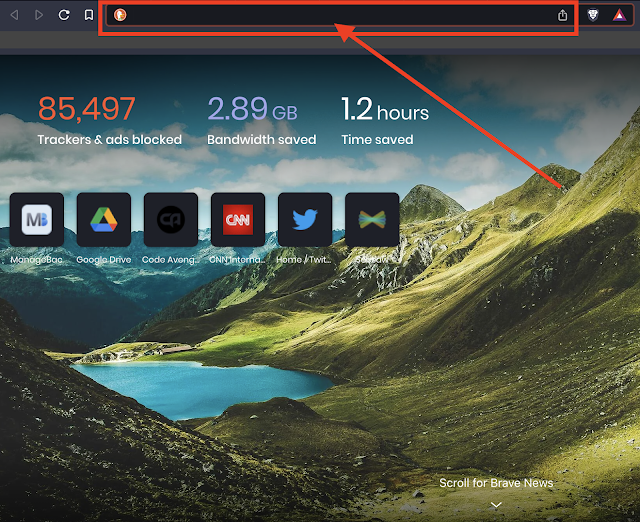
Search Websites from the Omnibox

* Omnibox is the URL/search area at the very top of your browser.

The Omnibox on the Brave Browser


I recently reinstalled my browser and some of my settings were changed. One pain point for me was that I could no longer search YouTube and Drive right from the Omnibox. It is easy to go to the site and type in the search terms, but it takes time - every click counts.

What I could do before was to type in youtube.com and press the TAB key*, and I would be able to search right from there. It was really convenient. 

I was trying to remember the fancy code like below:

https://drive.google.com/drive/search?q=%s

Today I went into the Chrome Settings and found that Chrome has these settings right in the browser.

To activate it:
  1. Open Settings
  2. Click on Search Engine on the left menu
  3. Click Manage Search Engines
  4. Click activate next to the sites you want


* TAB can be changed with the space bar in the settings.


Thursday, October 20, 2022

Using Data for Student Support

While in an SEN team meeting, I was a little confused about the data we were looking at in the system. We were looking at data from an online reading app, but the data was in ranges. All it showed us was the average from certain ranges, but we didn't know when interventions happened and what the intervention or strategy was so we could see if it worked.

My idea was to collect baseline data before a strategy was implemented. Then once that was collected, we would start tracking the progress.

In the example below, there are four reading skills we are tracking. At the top is a dropdown that will show the skills. When a skill is chosen, the average appears.


Then I thought of a scenario where you would want to see scores in a range. I don't know how to do that off the top of my head, but I knew I could do it with checkboxes. So the second way is to use checkboxes to find the average of the scores.